01↓
Get the Zvolta app
Download the app before you reach the charger. It is your key to finding, paying for and managing your sessions.
ϟ ZVOLTA DRIVER GUIDE
Find a charger, top up your wallet and start your EV session in a few simple steps with the Zvolta app.
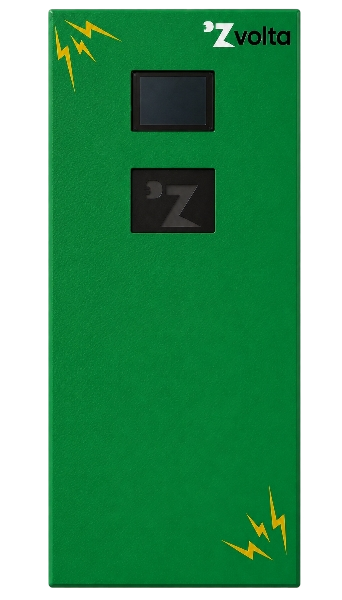

01 · HOW TO CHARGE
The Zvolta app guides you through each step—before you connect, while you charge and when you are ready to go.
Download the app before you reach the charger. It is your key to finding, paying for and managing your sessions.
Create your account with your mobile number, or sign in if you already have one. Keep your number ready for verification.
Add balance before starting a session. Your available wallet balance is always visible in the app.
At the station, tap the app’s Scan QR button and point your phone camera at the QR code on the charger display.
Check the station name, current price and charging speed. Connect your vehicle, then tap Start Charging.
When you are ready, tap End Session in the app. Wait for confirmation, then unplug safely and return the cable or gun.
02 · INSIDE THE APP
From finding a charger to viewing a completed session, the Zvolta app keeps your charging journey simple and transparent.


02 · GET THE APP
Find stations, check their availability and charging speed, pay with your Zvolta wallet and keep track of every session.
Download Zvolta app ↗Opens the Zvolta app download page.03 · TOP UP YOUR WALLET
Add credit before you charge so your next session can start without delay. Select the payment method that works best for you in the app.
04 · AT THE CHARGER
Use a compatible connector and never force a plug or charging gun into your vehicle.
Insert the compatible connector fully and make sure it is secure before opening the scan screen.
Scan the charger QR code, then review the station details, pricing and charging speed shown in the app.
Tap Start Charging and wait until the app confirms the session is active before you leave the vehicle.
05 · WHEN YOU ARE DONE
Tap End Session and wait for the session-end confirmation before disconnecting. Do not unplug while the session is still active.
Need charging help? →It is now safe to unplug your vehicle.